Use the Website Agent with a migrated site
Point your dashboard at your new domain so you can keep editing with the agent.
Before you start
Only do this after your site is moved and the new domain is live or ready. This doesn't move your site. It tells 1ClickWebsite where your site lives now.
Update your domain
-
Open your dashboard Go to your 1ClickWebsite dashboard.
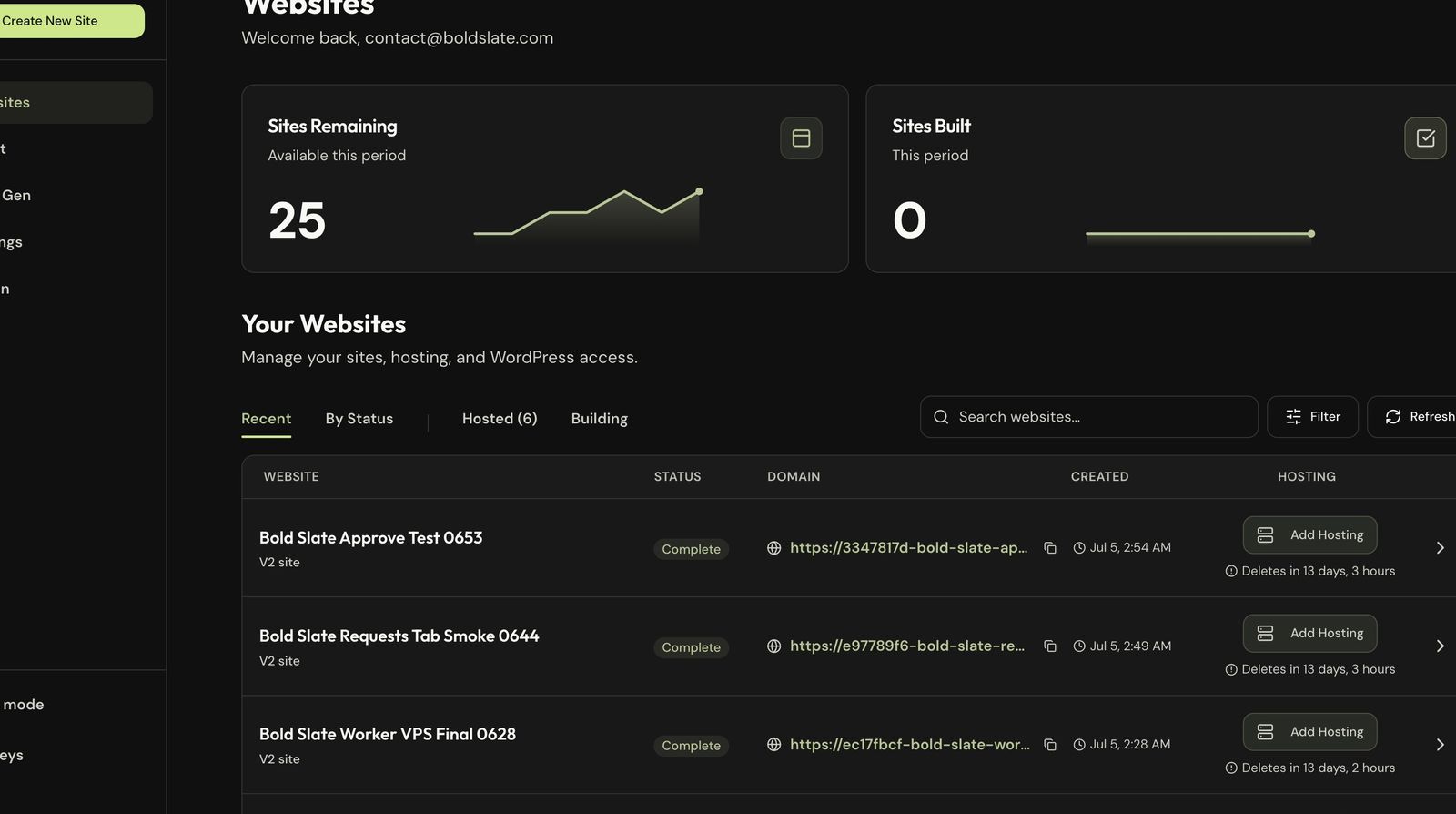
-
Select the moved site Open the site details page for the site you moved.
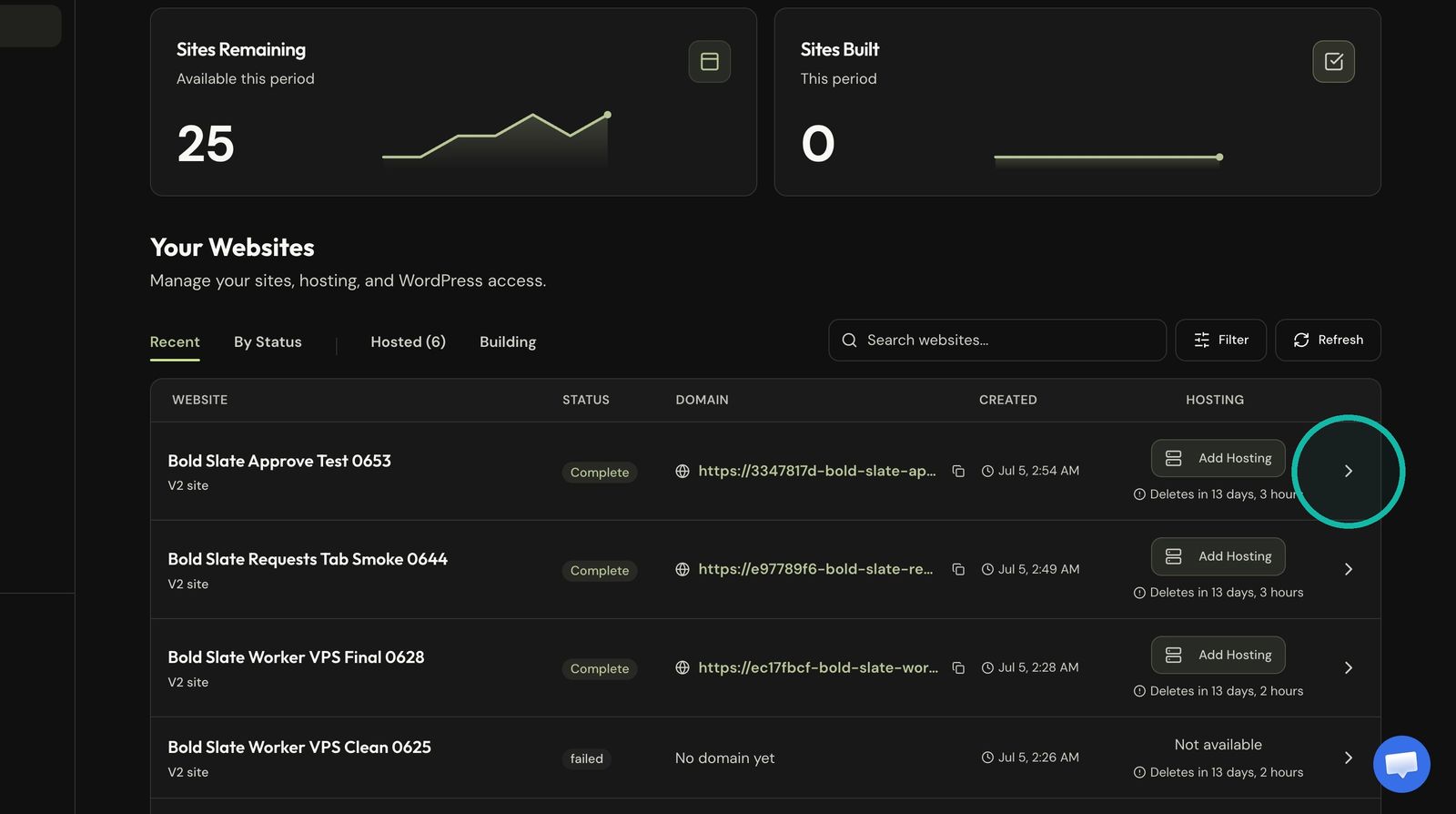
-
Edit the domain Click Update it here next to Migrated to a different domain?
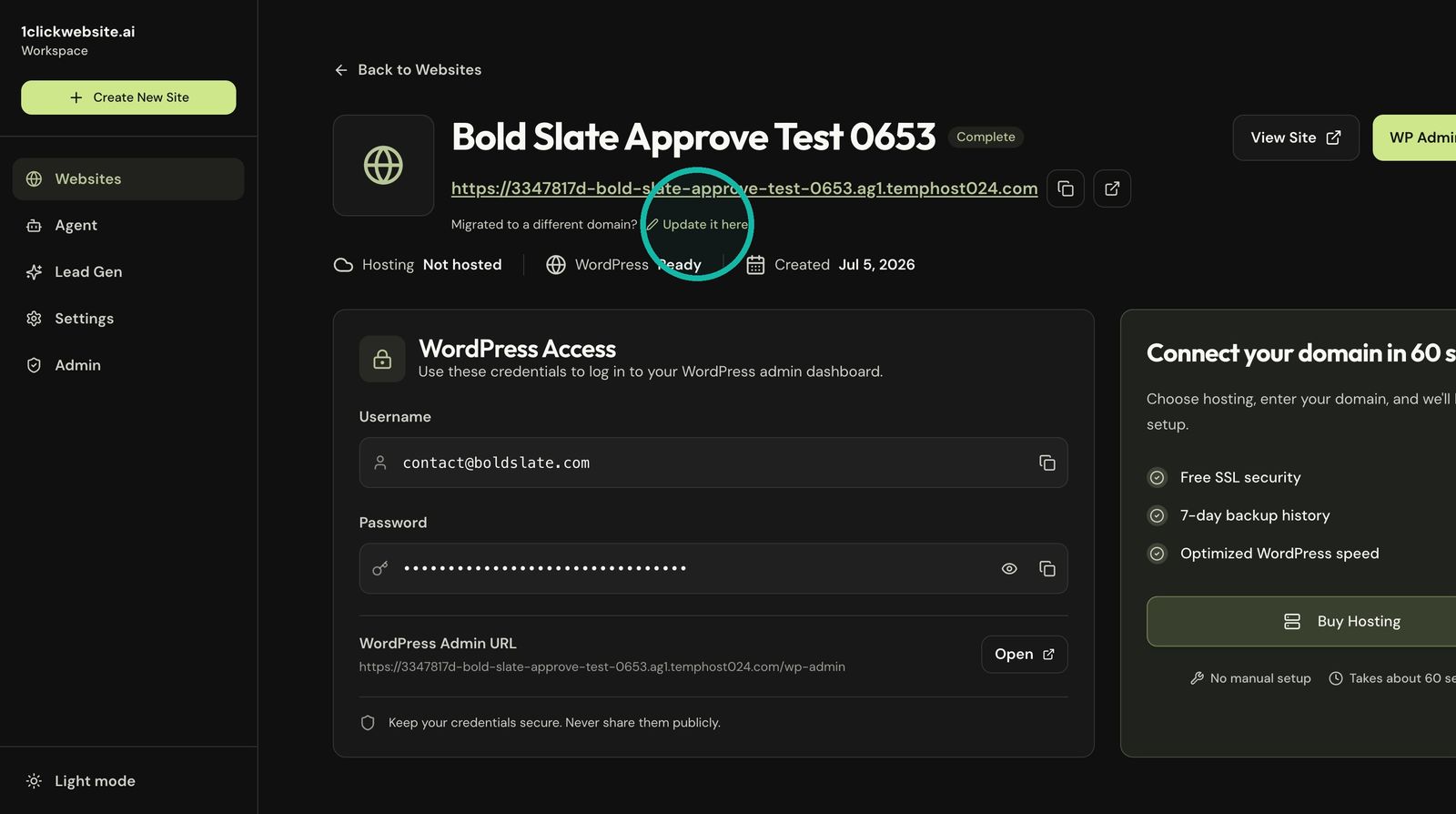
-
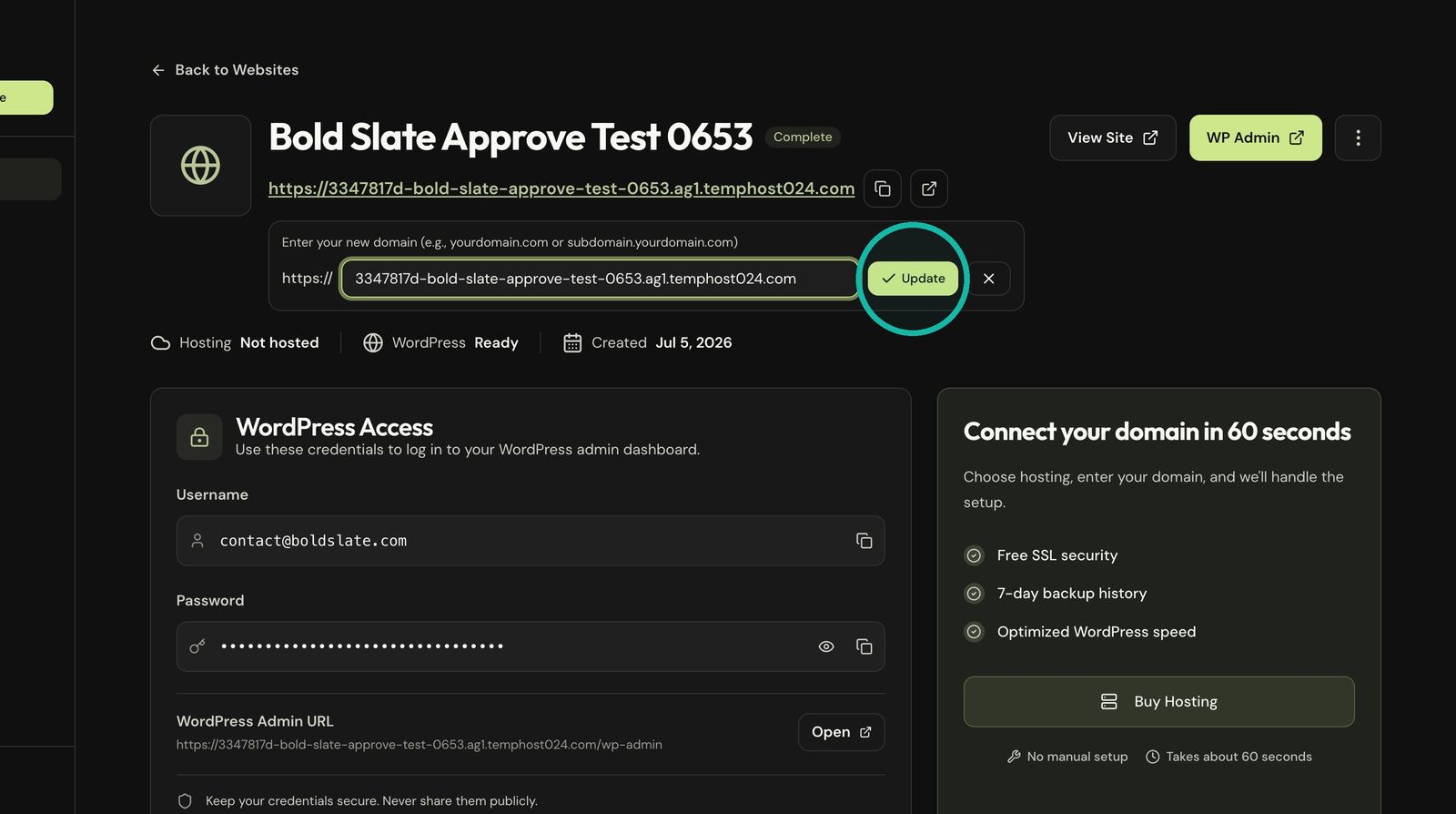
Save the new domain Enter your new domain, such as
yourdomain.com, then click Update. Leave offhttps://, since the dashboard adds it.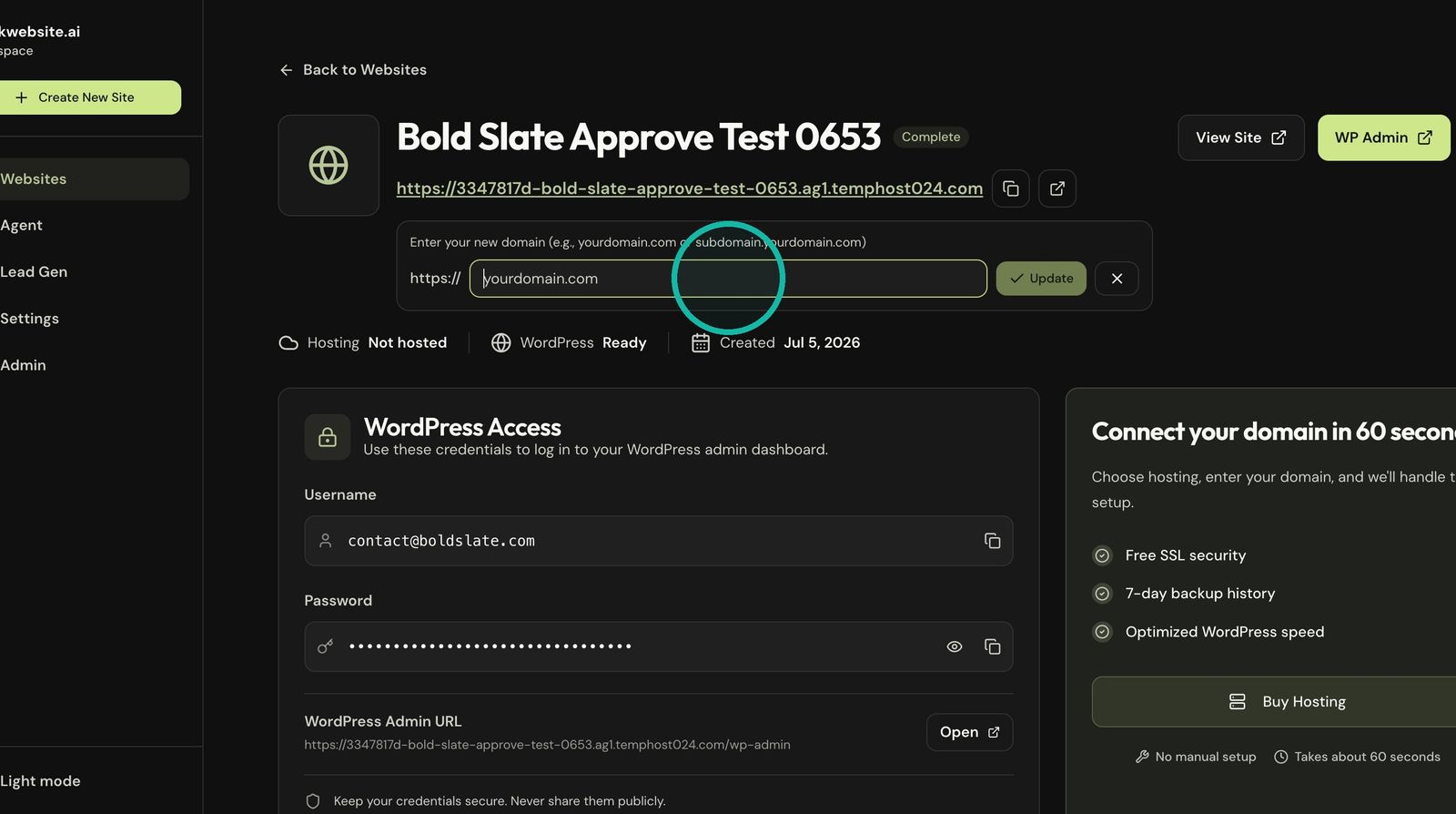
-
Open the Website Agent Open the site's Agent page and pick the site in the Website dropdown.
Edit with the agent
Pick the moved site in the Website dropdown, then ask for what you want, like changing text, updating colors, editing the menu or adding a service page.
Use your own AI instead
You can also connect Claude, ChatGPT or Cursor to a moved site. Give it a WordPress application password from the new site and it can make the same edits.
Troubleshooting
- Site isn't loading or WP admin won't open: check your DNS with your domain provider, or chat with us and include your new domain.
Still stuck?
Chat with us and we'll reply right here, usually in a few minutes.