Add and edit CMS items
Add, edit or remove reviews, gallery images, FAQs and other repeatable content.
Easiest way: ask the agent
Open the Website Agent, pick your site and say what you want. It can add, edit or remove items, add a whole list at once, and even create a brand-new collection with its own fields.
- "Add these 5 reviews to the site: [paste reviews]"
- "Add an FAQ asking if we offer free estimates. The answer is yes, within 24 hours."
- "Remove the gallery photo of the blue truck."
- "Create a Team Members collection with name, role and photo, and add our 3 team members: [paste details]"
Prefer Claude, ChatGPT or Cursor? You can connect your own AI and ask it the same things.
Before you start
CMS items are repeatable content like reviews, gallery images, FAQs, locations and industries. Each type has its own menu in the WordPress sidebar, such as Gallery, Customer Reviews or Questions Answered. The fields change by type, but the steps are the same.
Do it yourself in WordPress
Add a new item
-
Open your dashboard Go to your 1ClickWebsite dashboard.
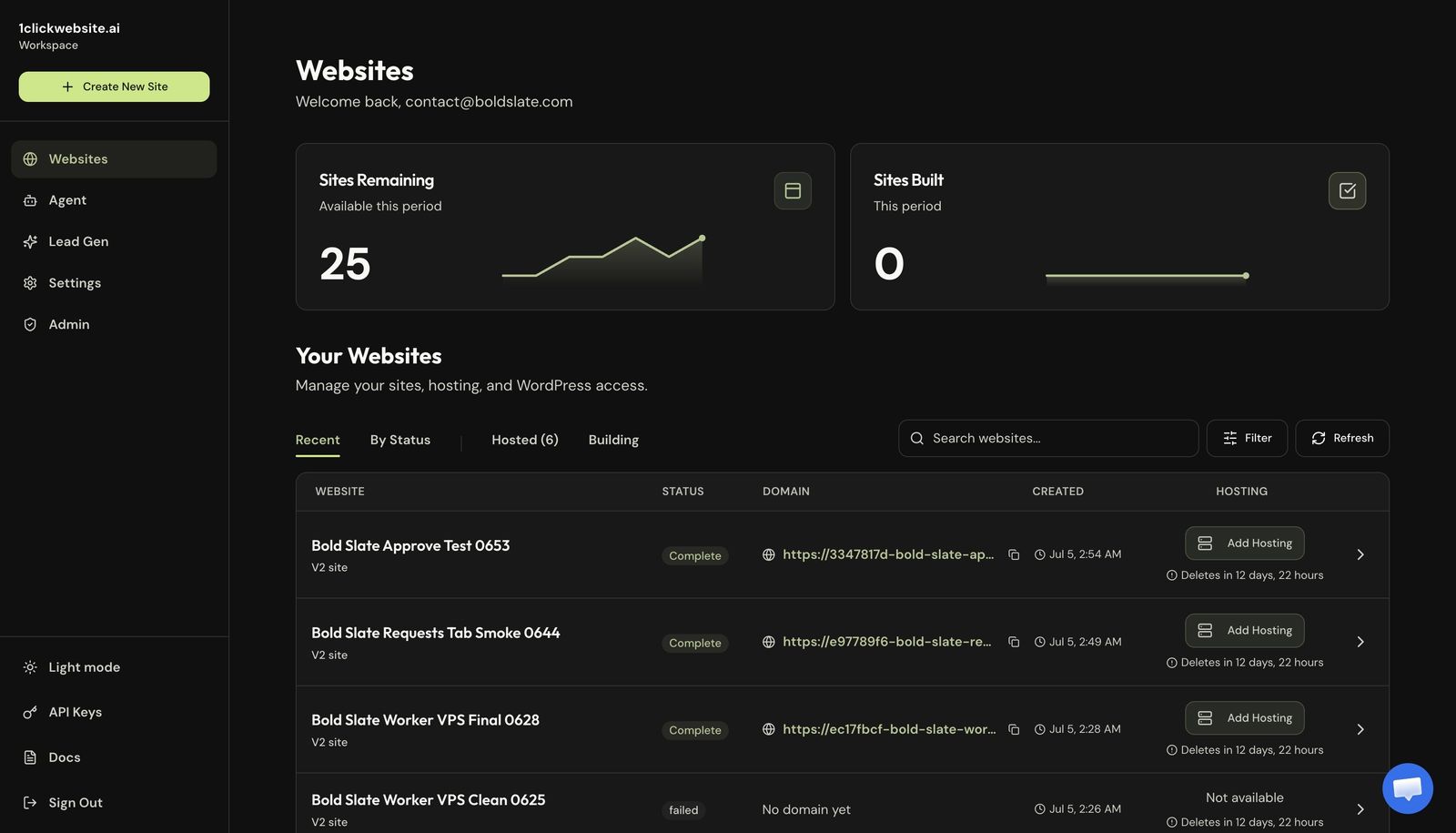
-
Select your site Open the site from your website list.
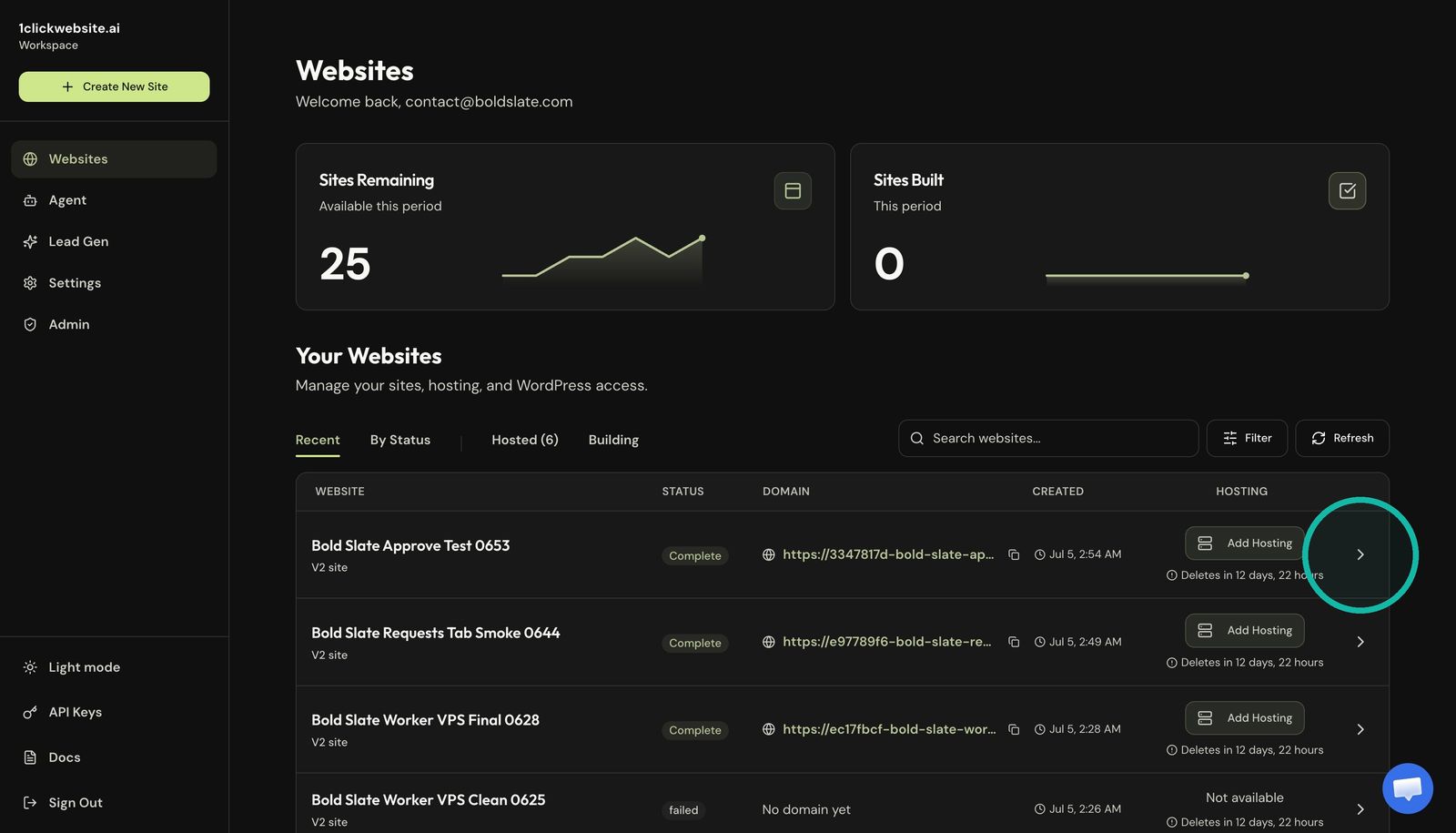
-
Open WordPress admin Click WP Admin on the site details page.
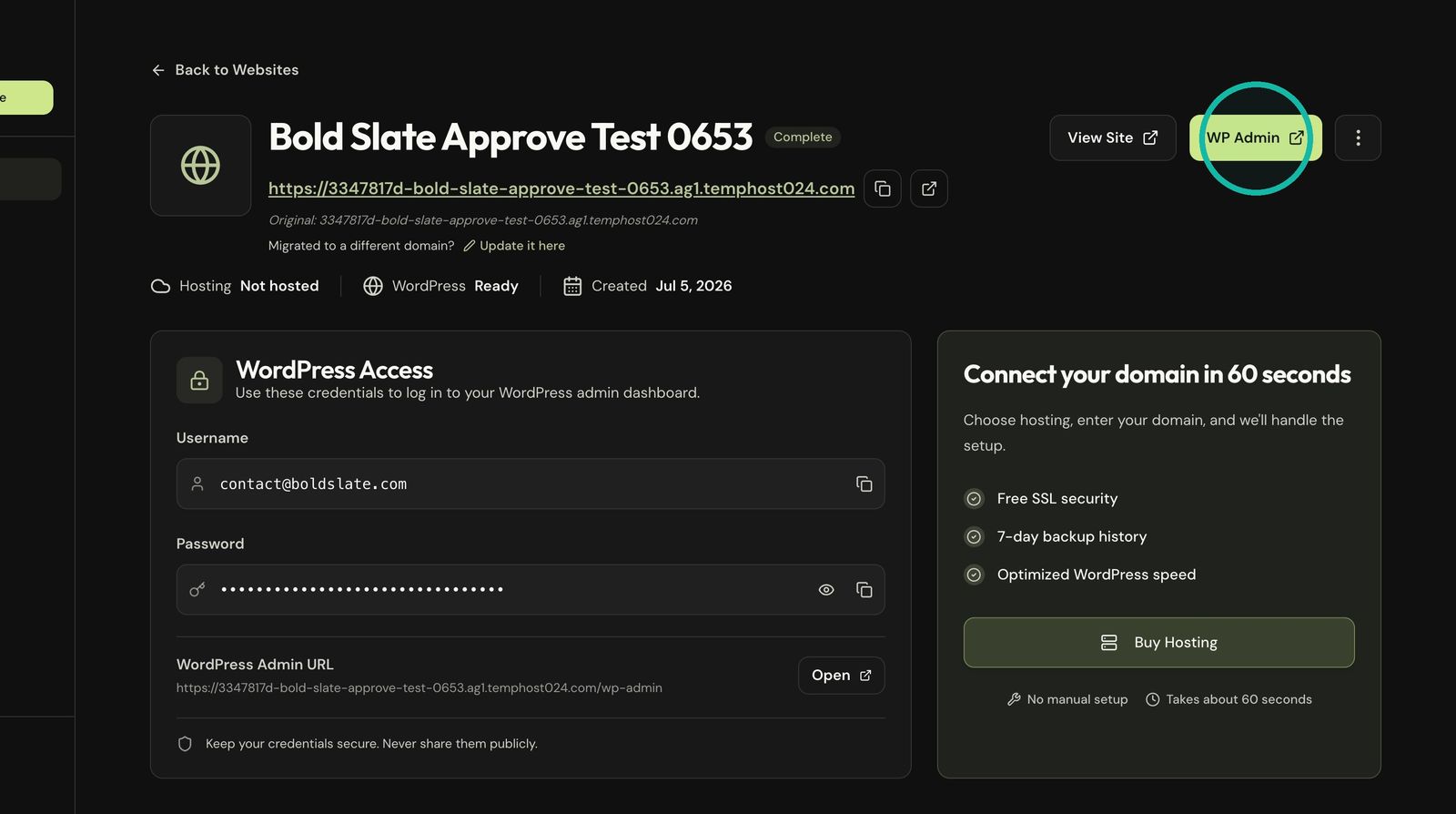
-
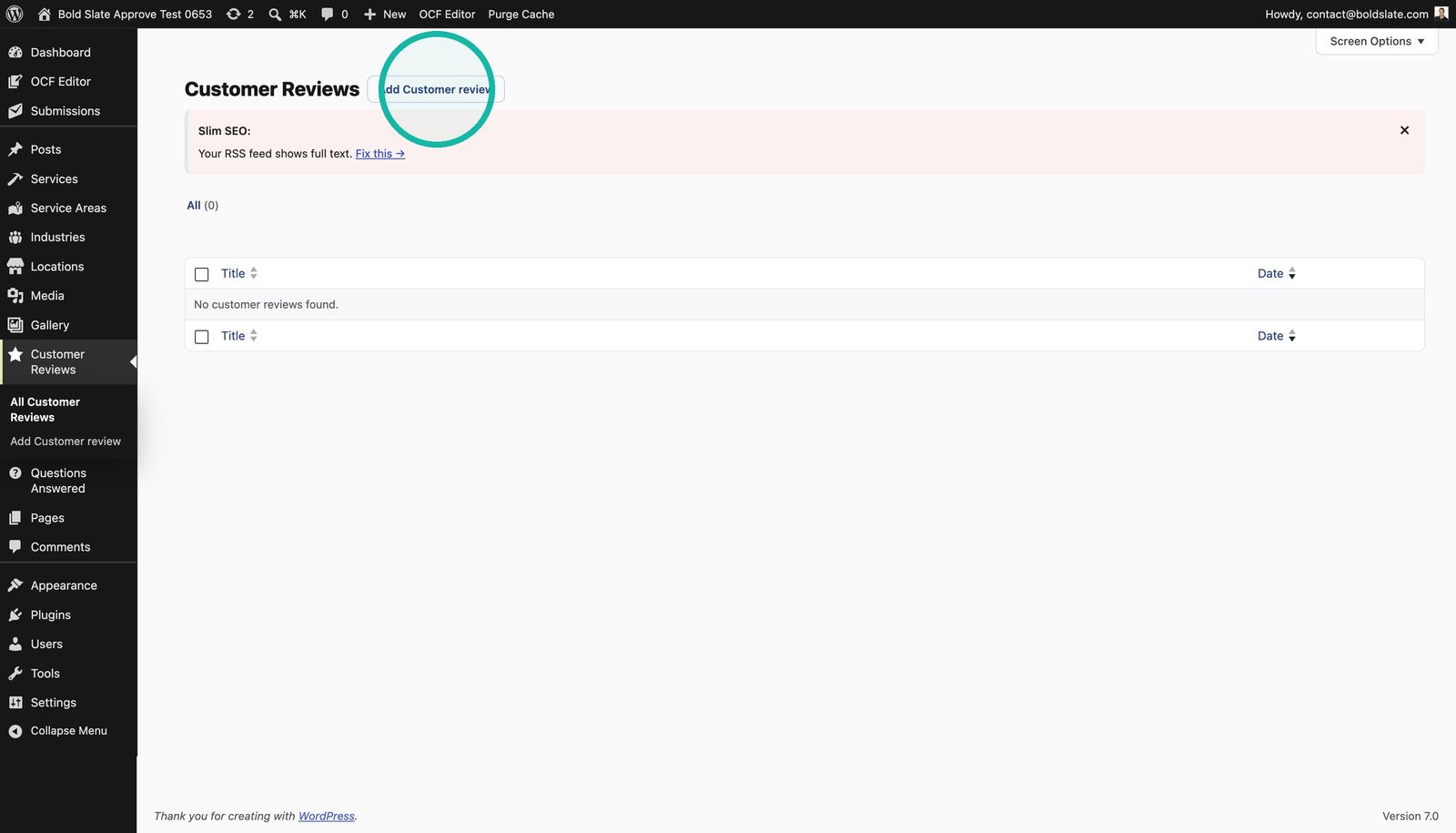
Choose the item type In the WordPress sidebar, open the type you want, such as Customer Reviews.
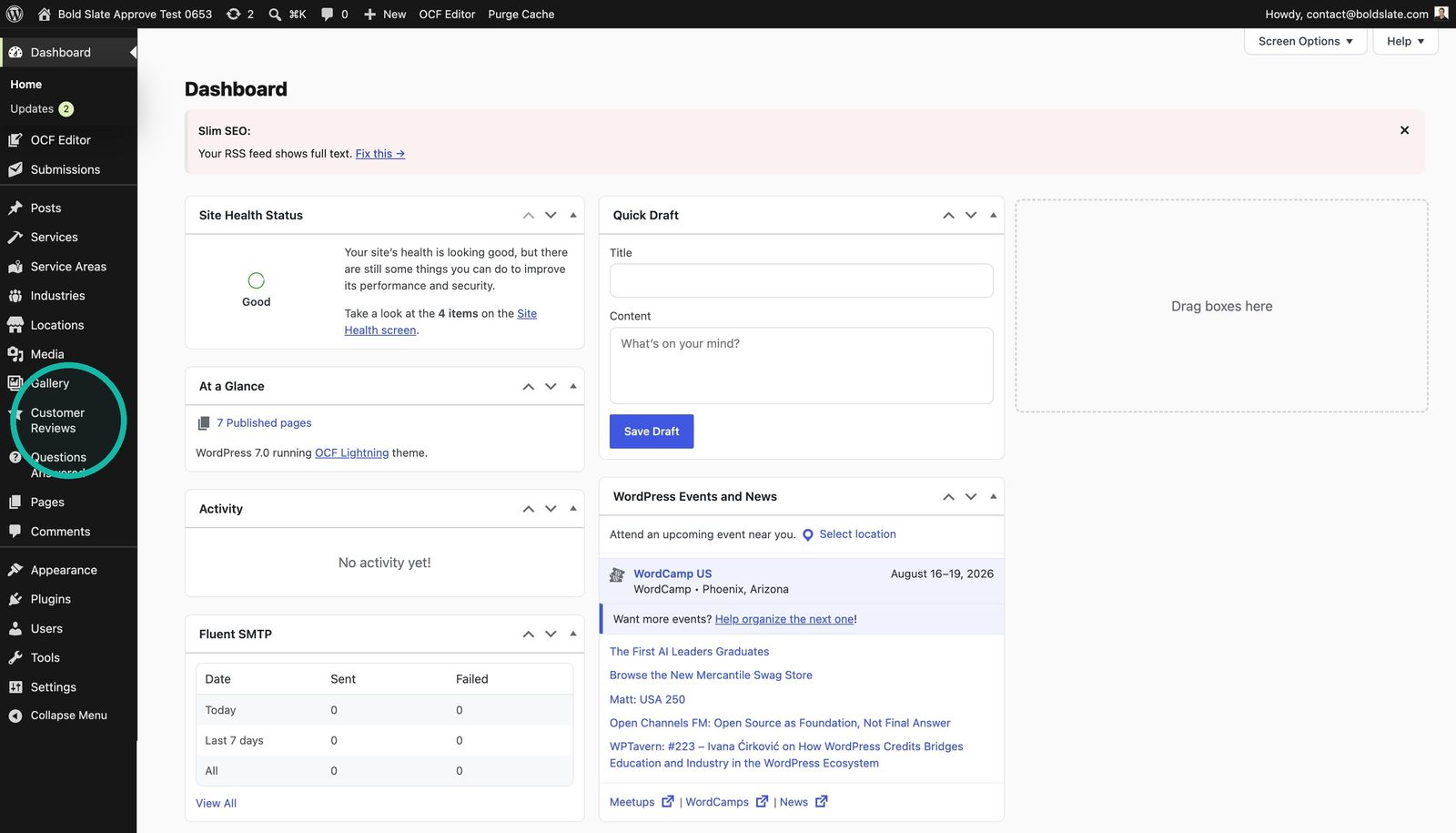
-
Add a new item Click the add button. For reviews, it's Add Customer review.
-
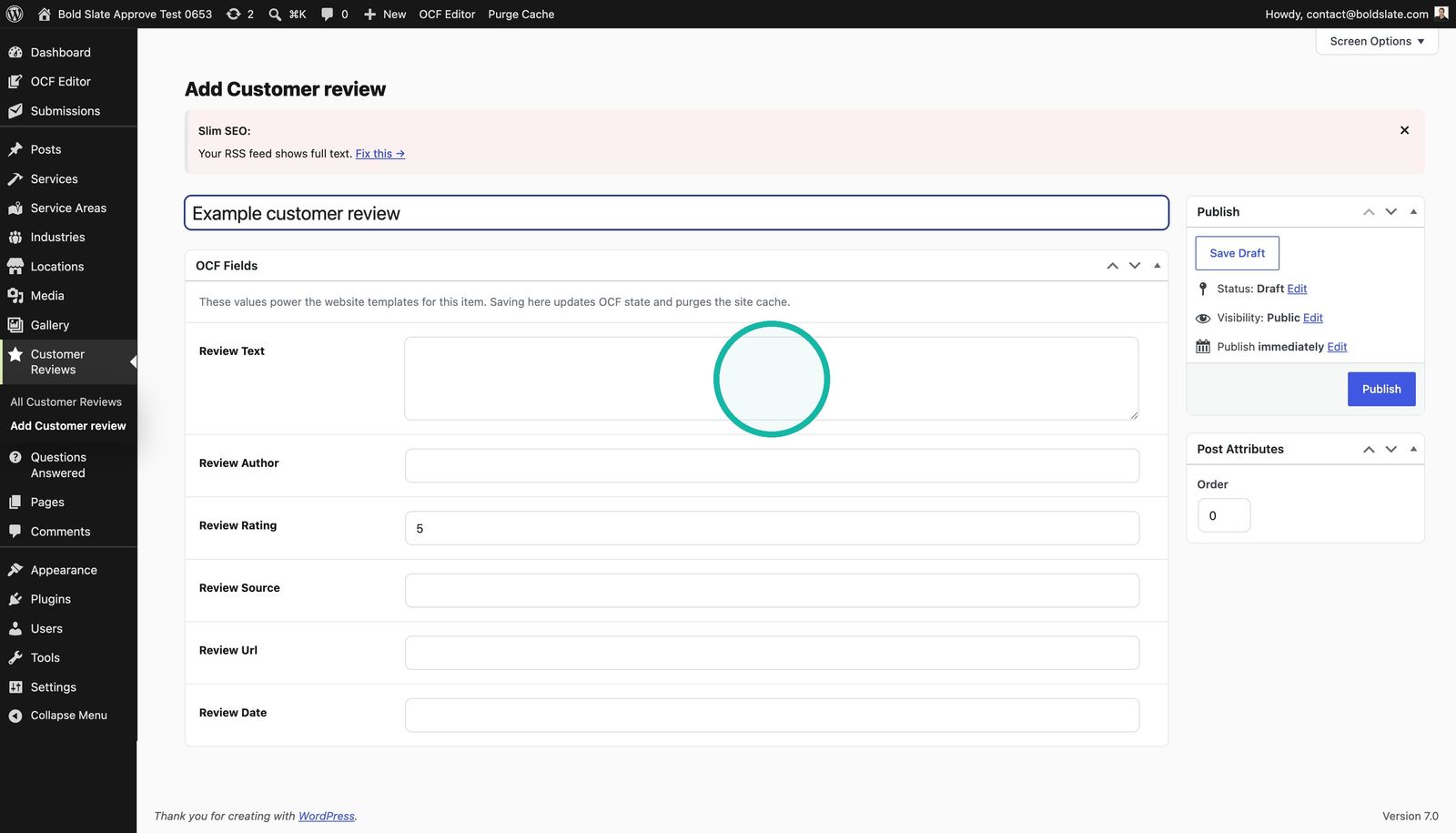
Fill in the fields Give it a clear title so it's easy to find later, then fill in the OCF Fields. For reviews, that's the review text, author, rating, source, URL and date. Use Order to control where it shows. Lower numbers show first.
-
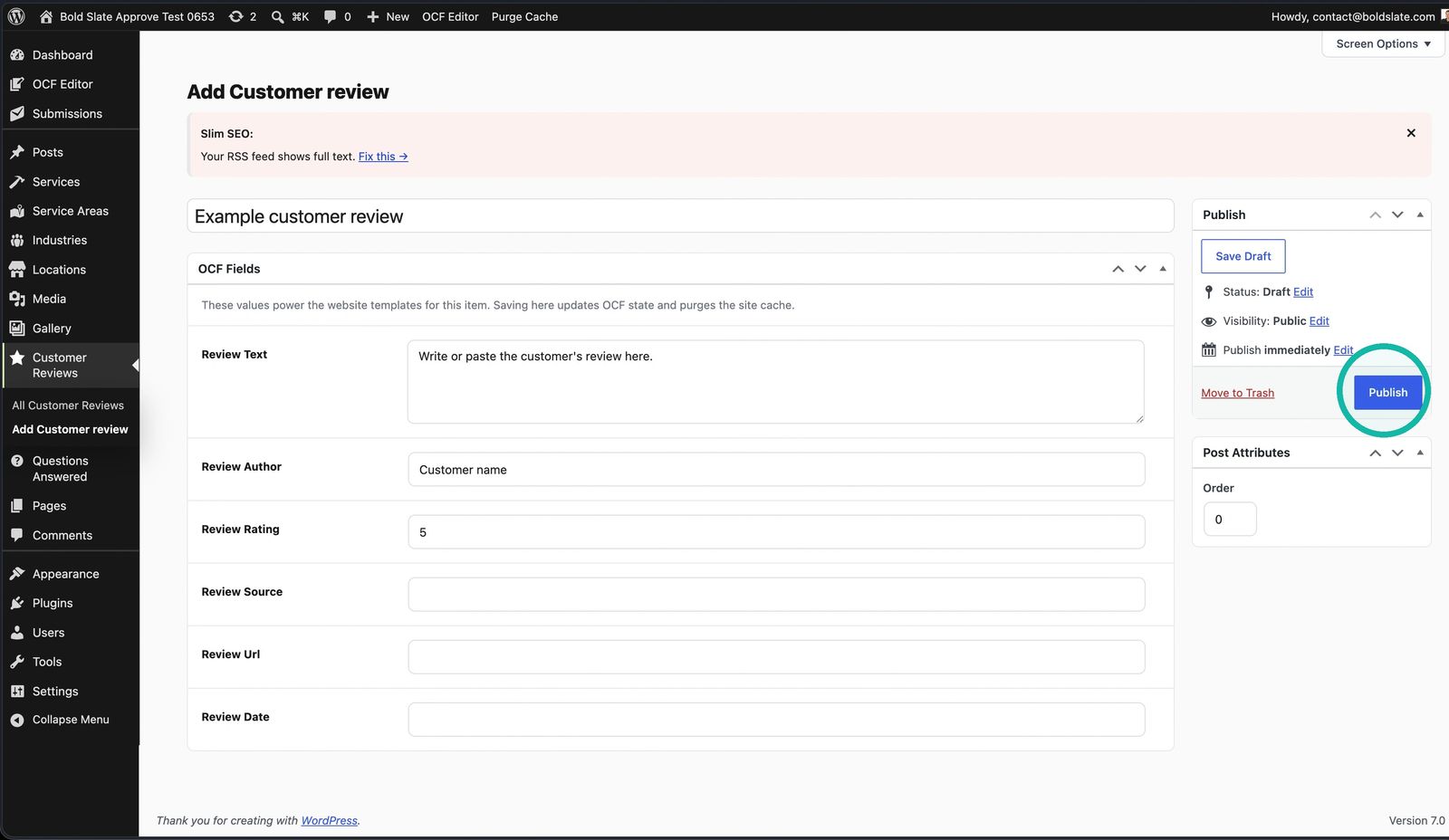
Publish Click Publish when it's ready to show on your site.
Edit an item
- Open the item Open the item type in WordPress admin and click the item you want to change.
- Update and save Change the title or OCF Fields, then click Update.
Remove an item
Open the item and click Move to Trash. You can also hover over it in the list and click Trash.
Good to know: saving clears your site's cache. If the live site doesn't change right away, refresh after a moment.
Troubleshooting
- Field I need isn't there: each type has its own fields. Gallery items have images, FAQs have a question and answer.
- Still stuck: chat with us and include your site URL and the item type.
Still stuck?
Chat with us and we'll reply right here, usually in a few minutes.