Edit a page meta title and description
Change the title and description a page shows in Google.
Easiest way: ask the agent
Open the Website Agent, pick your site and ask. It can write titles and descriptions for one page or every page at once.
- "Write a better meta title and description for the homepage."
- "Check every page's meta title and description and fix any that are too long."
- "Make the Roof Repair page's meta title mention Sacramento."
Prefer Claude, ChatGPT or Cursor? You can connect your own AI and ask it the same things.
Before you start
You need your site in the 1ClickWebsite dashboard and access to its WordPress admin.
Do it yourself in WordPress
-
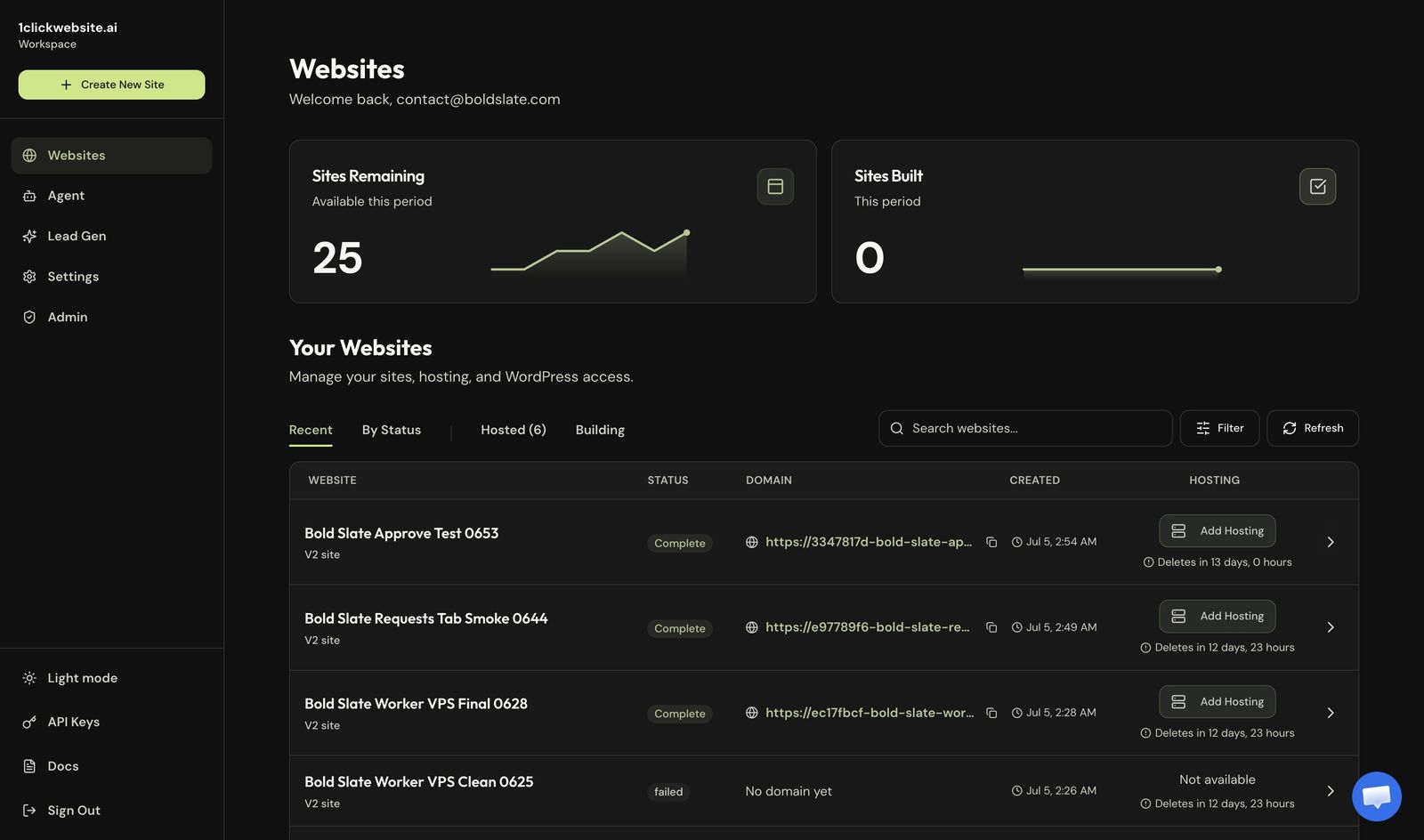
Open your dashboard Go to your 1ClickWebsite dashboard.
-
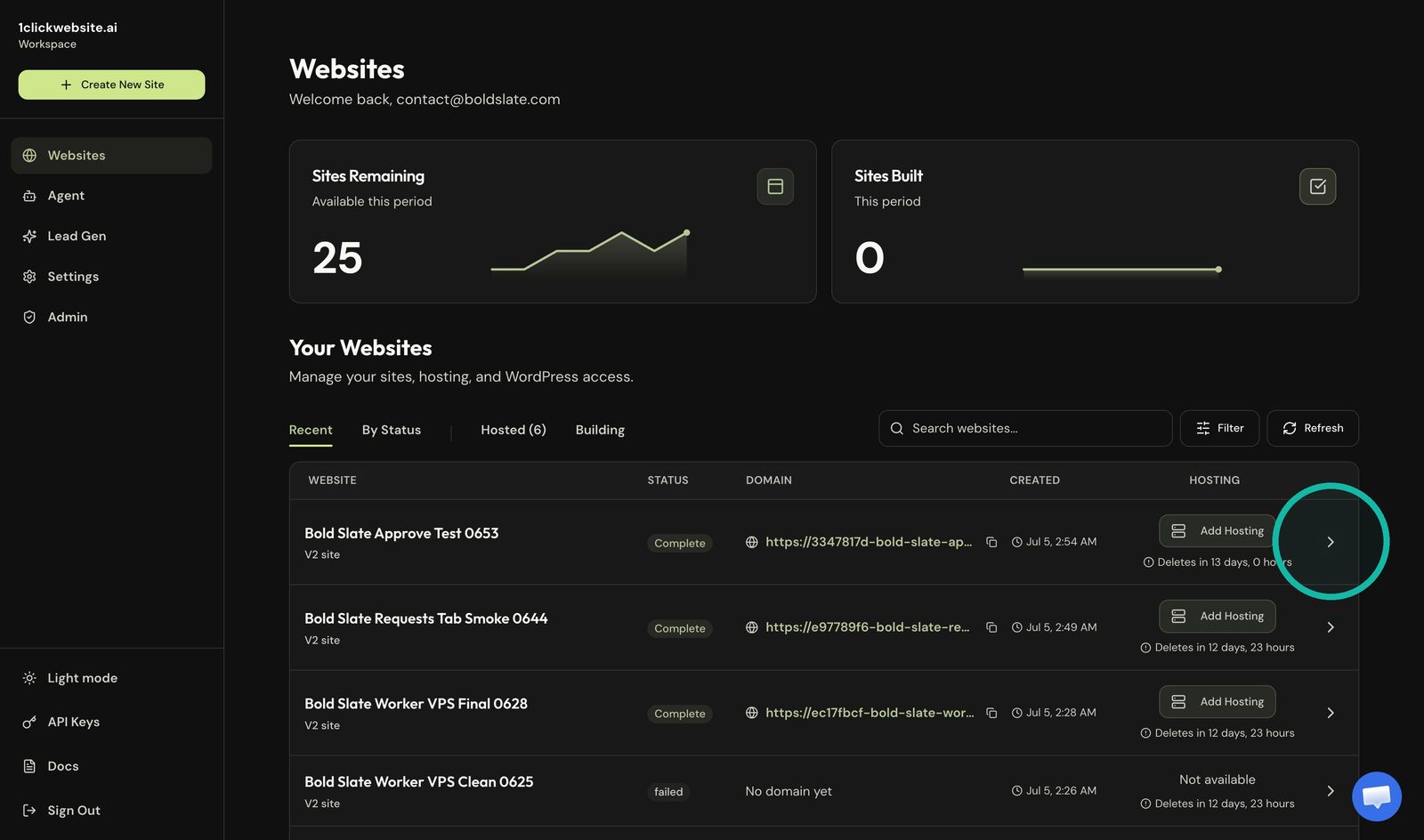
Select your site Open the site from your website list.
-
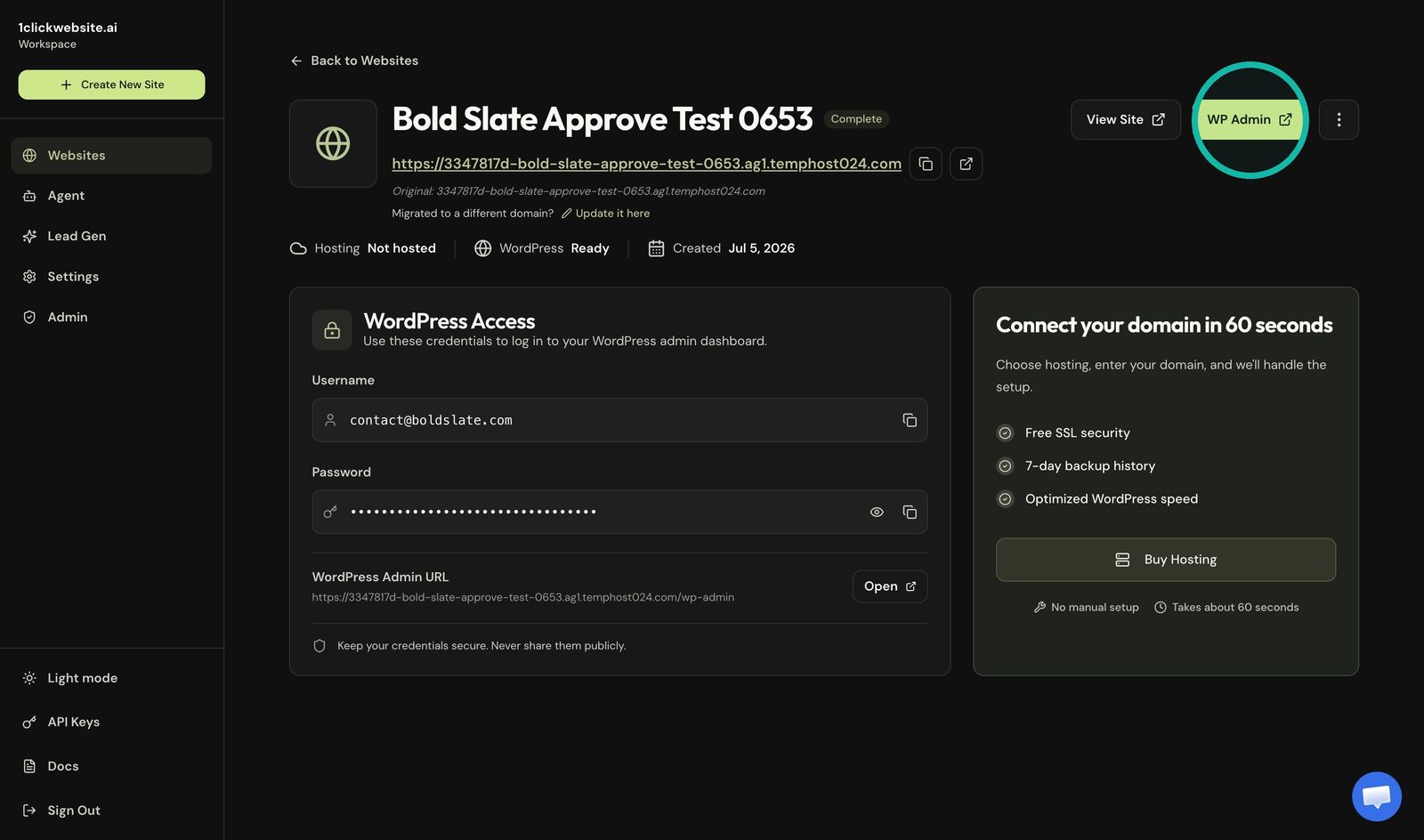
Open WordPress admin Click WP Admin on the site details page.
-
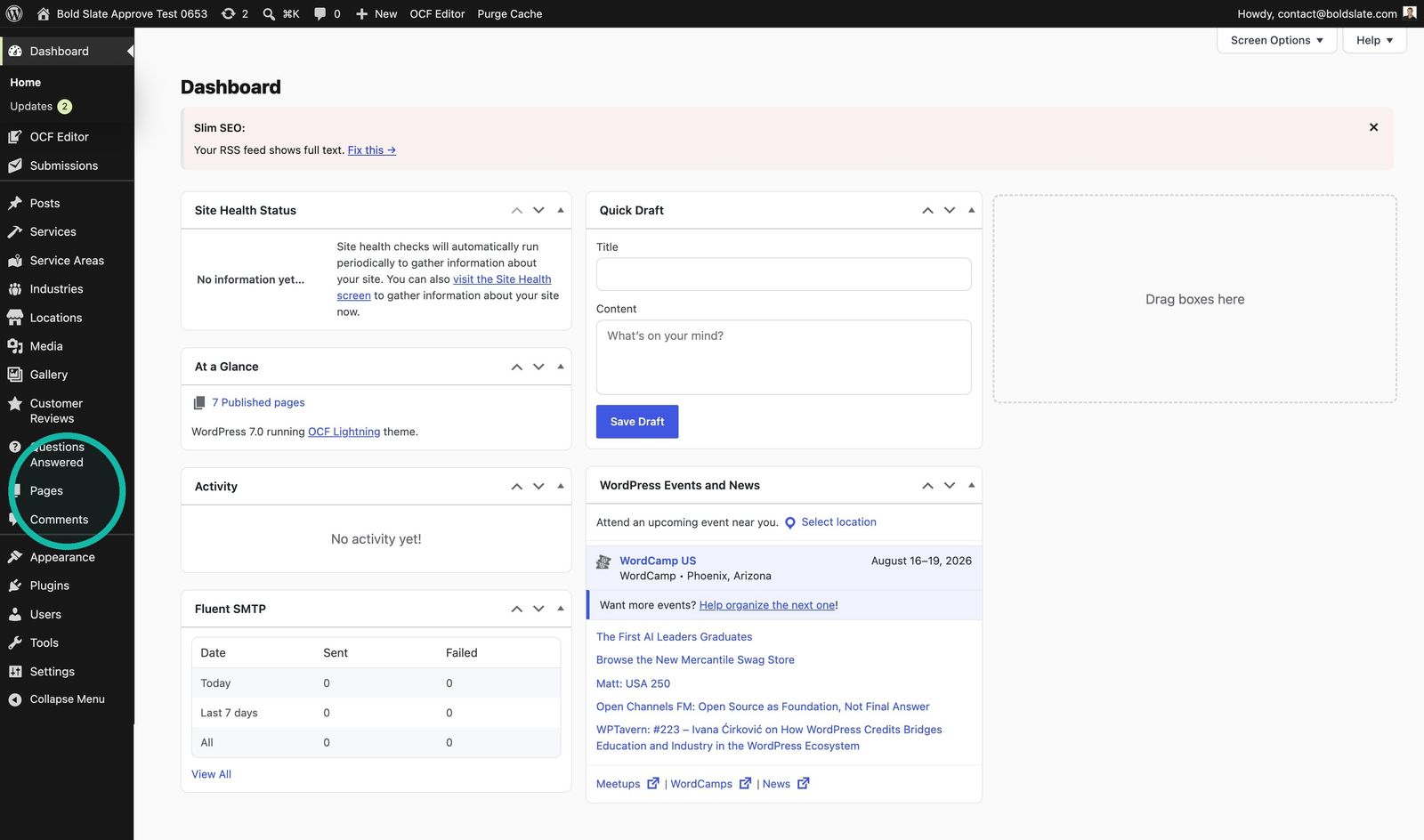
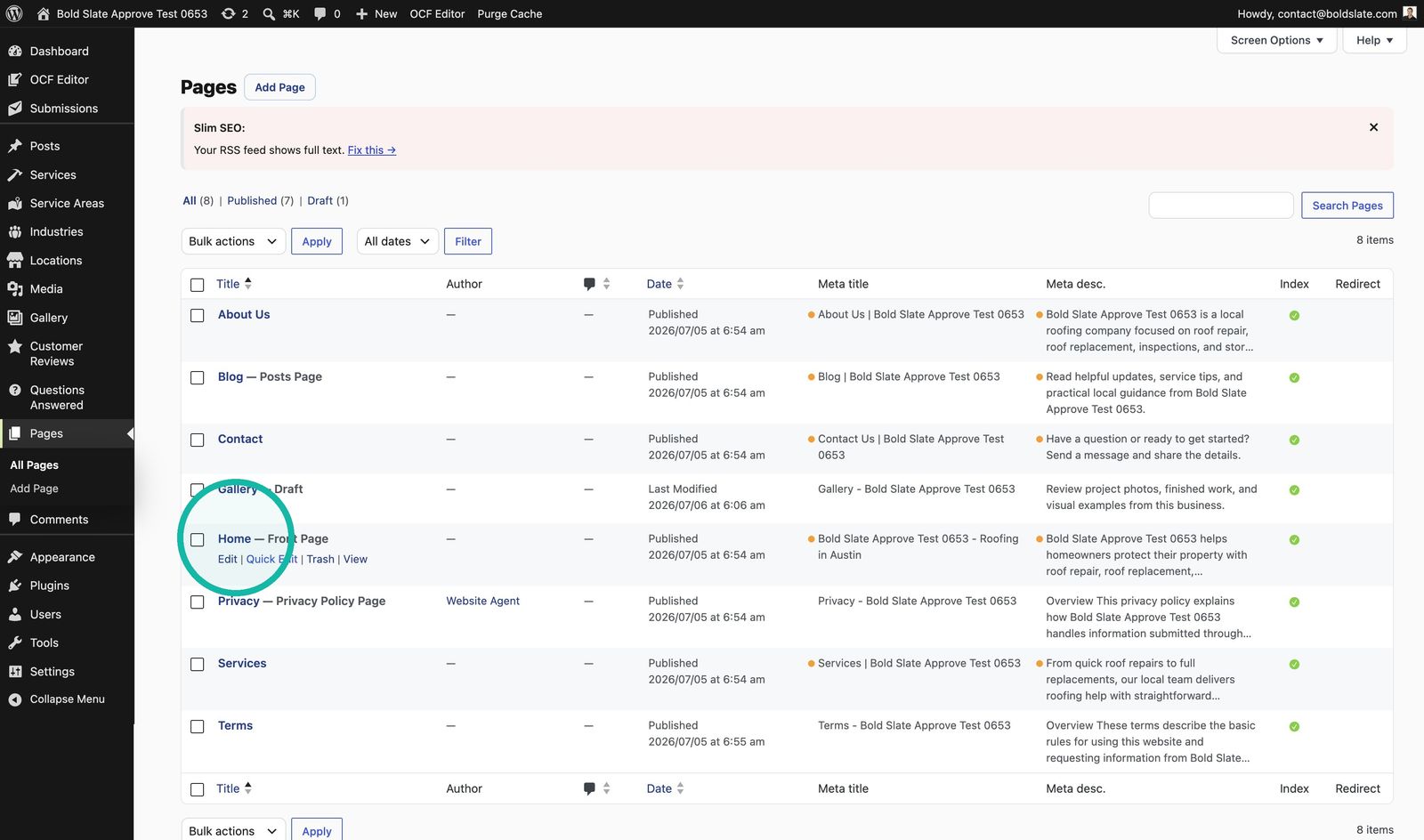
Open Pages Click Pages in the WordPress sidebar.
-
Choose the page Open the page you want to edit, such as the homepage.
-
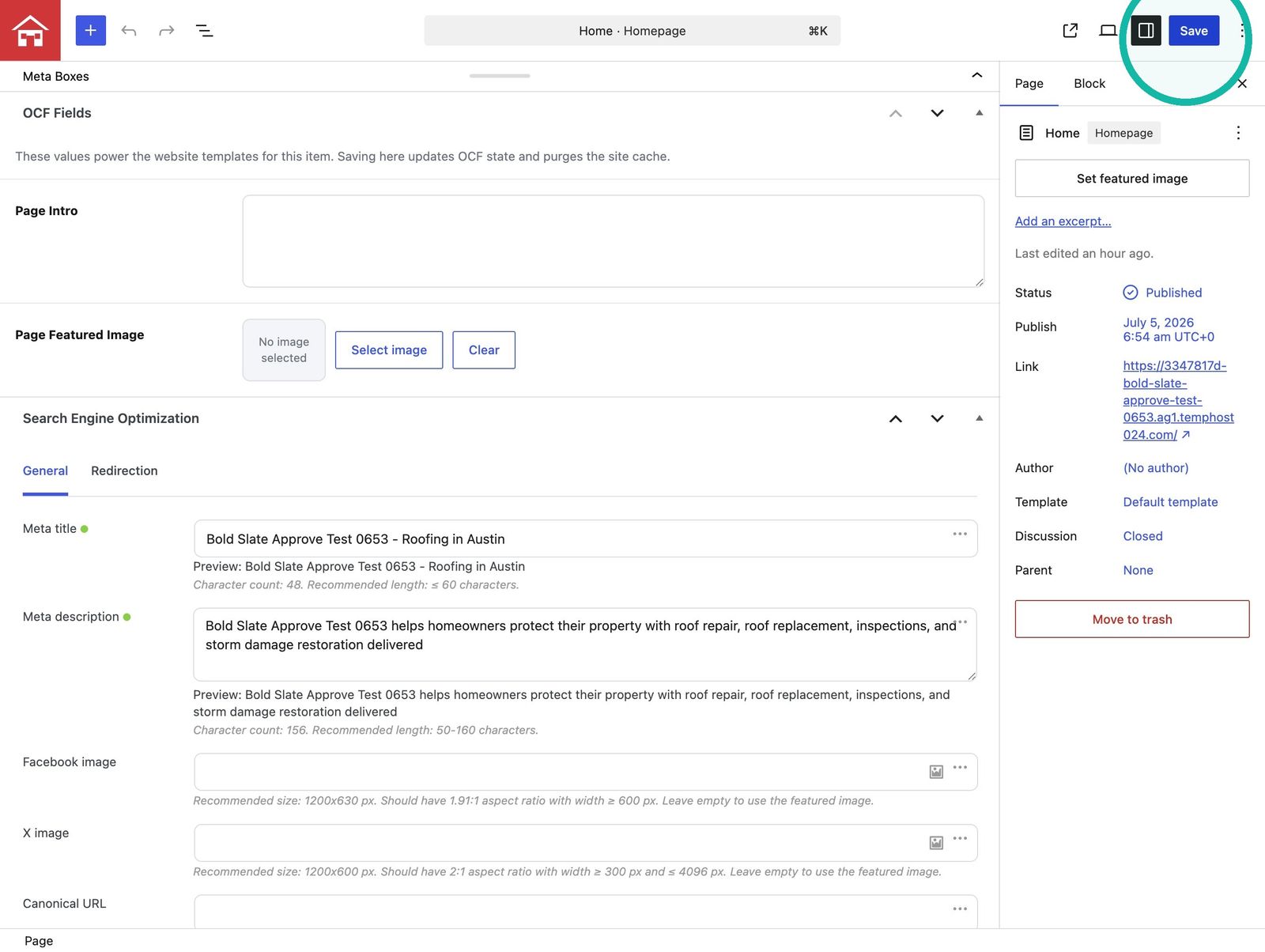
Update and save Scroll to Search Engine Optimization, change the Meta title and Meta description, then click Save.
Tips
- Meta title: keep it clear and specific, up to 60 characters.
- Meta description: make it useful to a searcher, 50 to 160 characters.
- Quick review: the Pages list shows both fields as columns.
- Other content: for services, service areas or blog posts, open that type instead of Pages. The steps are the same.
Troubleshooting
- No SEO section, or the page won't save: chat with us and include your site URL.
Still stuck?
Chat with us and we'll reply right here, usually in a few minutes.